Phone · Laptop · Headset
Microphone Test
Check that your microphone works and sounds clear: a live level meter, a voice frequency view and a 3-second playback. All processed privately in your browser.
Audio stays in your browser's memory and is never uploaded. Use headphones for playback to avoid echo. Levels are uncalibrated.
Next step: Left/right, rattle, bass and treble checks.
Open Speaker Test →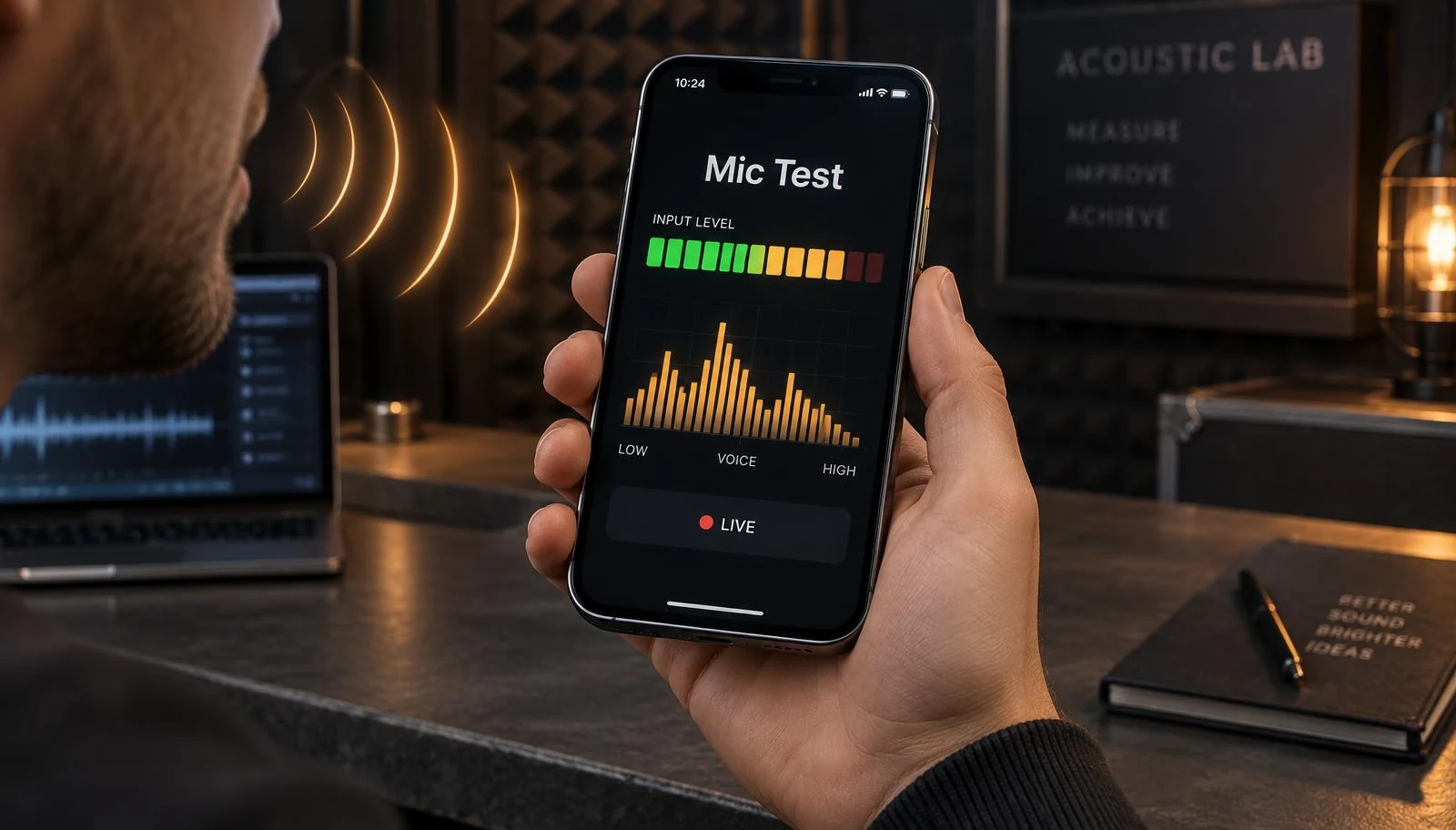
Quick answer: is my microphone working?
Press Test My Microphone, allow access, and speak normally. If the level bar moves and the Voice band lights up, the microphone is picking up sound. Then record 3 seconds and press Hear Yourself to judge clarity. No movement at all usually means a permission or input-selection problem, not broken hardware.
How to run the test
- Remove any case or cover near the microphone opening and disconnect Bluetooth earbuds unless you are testing them.
- Press Test My Microphone and choose Allow in the browser prompt.
- Speak at normal volume about 20 cm away. A good level sits in the middle of the bar; a red bar means you are too close or too loud.
- If you have several inputs, pick one in the Input list to compare them.
- Press Record 3 s, then Hear Yourself, ideally with headphones on.
- Press Stop Test. The browser's microphone indicator should disappear immediately.
Four common reasons a microphone fails
- Blocked opening. Phone microphones sit behind tiny holes, often beside the charging port. Pocket lint or a case can block them, making your voice thin or distant.
- Permission switched off. The browser, or the operating system's privacy settings, can block the microphone for a site or for the whole browser.
- Wrong input (Bluetooth). If earbuds or a car system are connected, the device may be listening through them instead of the built-in microphone, sometimes from another room.
- Moisture. Water can sit in the opening after rain or a splash and muffle your voice until it dries.
How to fix microphone permissions
- iPhone (Safari): tap the page-settings button in the address bar → Website Settings → Microphone → Allow. Also check Settings → Apps → Safari → Microphone.
- Android (Chrome): tap the icon left of the address → Permissions → Microphone → Allow. Check Settings → Security & privacy → Privacy → Microphone access.
- Windows: Settings → Privacy & security → Microphone: allow apps and your browser to access it, then pick the input under Settings → System → Sound.
- Mac: System Settings → Privacy & Security → Microphone: enable your browser, then choose the input under System Settings → Sound → Input.
How to read the result
- Bar moves, voice clear on playback: the microphone works. Call problems are more likely the app, network or the other person's device.
- Bar moves but playback sounds muffled: check for lint, water or a case over the opening, and make sure you are not on a Bluetooth headset.
- Bar never moves: check permissions and the input list. If another app works but this page doesn't, it is a browser setting.
- Hiss or hum when silent: some background noise is normal; a loud constant buzz can mean a faulty cable or headset.
Cleaning a microphone opening safely
Power the device off and brush the opening gently with a dry, soft-bristled brush. Do not push pins, needles, liquids or compressed air into the hole, microphones sit right behind a thin protective mesh that is easy to puncture. If the device got wet, let it dry fully before testing again; Apple's guidance for wet iPhones applies here too (see our iPhone water guide). If the speaker also sounds wrong, run the speaker test or the speaker diagnostic.
Privacy
The microphone is only used after you press the button and accept the browser prompt. Sound is analysed on your device; the optional 3-second clip is held in memory for playback and discarded when you stop. Nothing is recorded to storage or uploaded. See our privacy policy.
Related tools & guides
Frequently asked questions
+Is this microphone test private?
Yes. Audio is analysed live in your browser's memory. Nothing is uploaded, stored or sent to any server. The optional 3-second playback clip lives only in memory and is discarded when you stop the test or leave the page.
+Why does the meter not move?
Usually the browser or operating system has blocked the microphone, another app is using it, or the page is listening to a different input such as connected Bluetooth earbuds. Check the input selector and the permission steps below.
+How do I allow microphone access on iPhone?
In Safari, tap the aA (page settings) button in the address bar, choose Website Settings and set Microphone to Allow. You can also check Settings > Apps > Safari > Microphone (or Settings > Safari on older iOS versions).
+How do I allow microphone access on Android Chrome?
Tap the icon to the left of the address bar, open Permissions (or Site settings) and allow Microphone. Also check Android Settings > Security & privacy > Privacy > Microphone access is turned on.
+Why does my recorded voice sound muffled?
Lint in the microphone opening, water trapped by surface tension, a case covering the hole, or recording through a Bluetooth headset (which uses a lower-quality call mode) are the common causes. Remove the case, disconnect Bluetooth and test again.
+Is the level meter a decibel measurement?
No. It shows the digital signal level your browser receives, which depends on your microphone, its automatic gain and the operating system. It is useful for a working / not working comparison, not as a calibrated sound level meter.