Scenario guide · iPhone Shortcuts
Water Eject Shortcut not working? Fix it or skip it
Short answer
The Water Eject Shortcut is a community-made Siri Shortcut, not an Apple feature. When it fails, the usual reasons are audio routed to Bluetooth, low media volume, or a dead share link. Turn Bluetooth off, raise the volume and retry, or use the player below, which plays a similar 165 Hz pulse in Safari with nothing to install.
Want to try the fix right now?
Open iPhone Water Eject →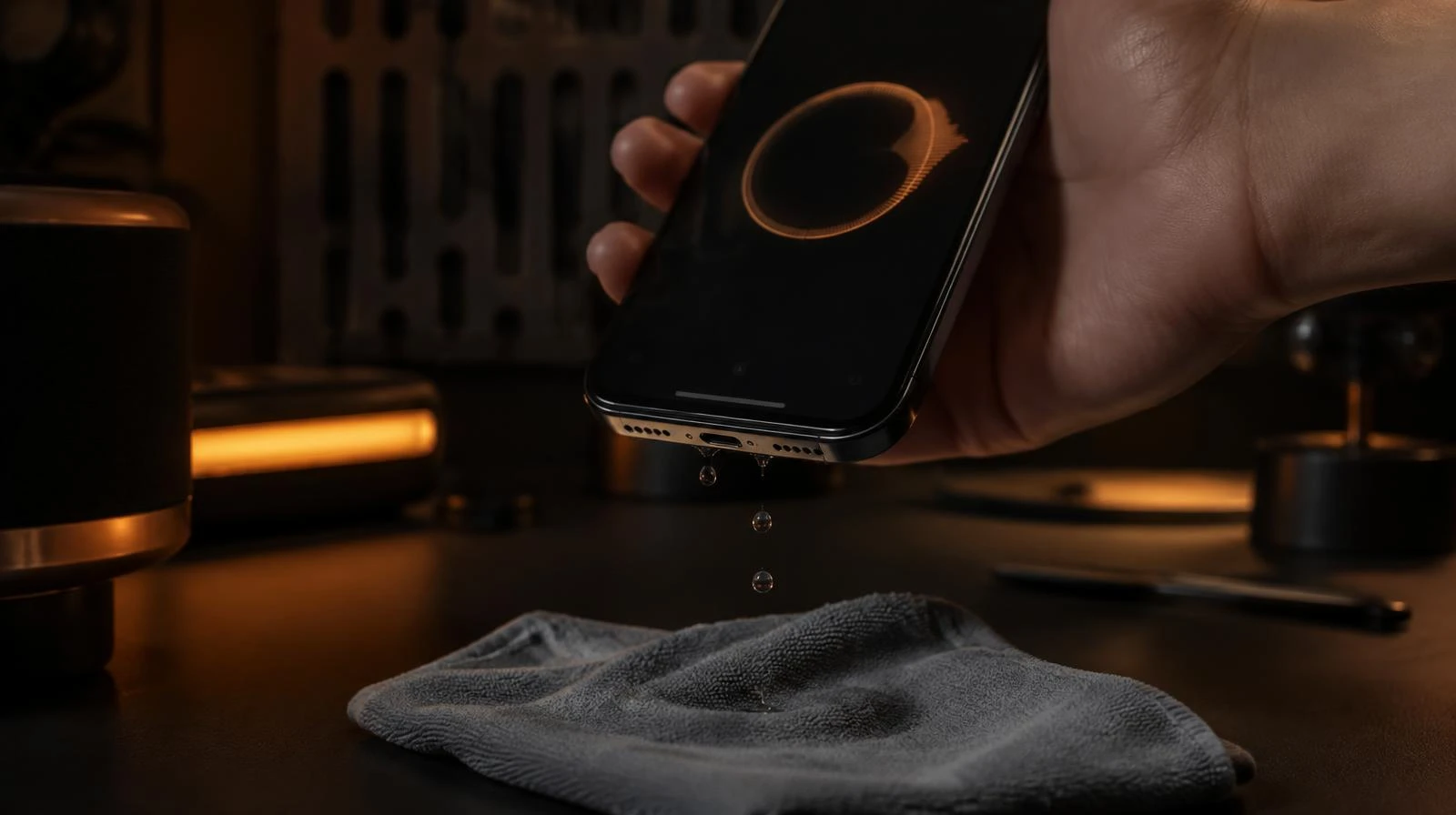
Play the tone now (no Shortcut needed)
Case off, media volume around 75%, bottom of the phone pointing down. Press Start and let the 60-second pulse finish; repeat up to three times.
- Volume 75%+: Set media volume to about 75% or higher, at a level that does not distort.
- Speaker down: Remove the case and point the grille at a cloth.
- Repeat 2–3×: Dab the grille between runs; repeat up to 3 times.
Sound + vibration · vibration works on Android
Turn device volume to max, place the speaker facing down, and remove any case. Stop immediately if you hear rattling or distortion.
Fix the Shortcut in this order
- 1
Audio going to AirPods or a car?
Sign: Shortcut runs but the phone speaker is silent.
Fix: Turn Bluetooth off or pick iPhone in the AirPlay menu.
- 2
Media volume low?
Sign: Tone is faint or barely buzzes.
Fix: Raise media volume to 75%+ while audio is playing.
- 3
Shortcut link broken or blocked?
Sign: "Can't open", missing iCloud link or a permission prompt.
Fix: Skip the install. Play a 165 Hz tone in Safari instead.
- 4
Still muffled after 3 runs?
Sign: Tone plays fine but sound stays dull.
Fix: Stop the tones, air-dry speaker-down for 24 h.
Remember: any water-eject sound, Shortcut or browser, can only shake loose droplets off the speaker mesh. It can't dry the charging port or the inside of the phone.
speakercleaningtool.com · Lab protocol
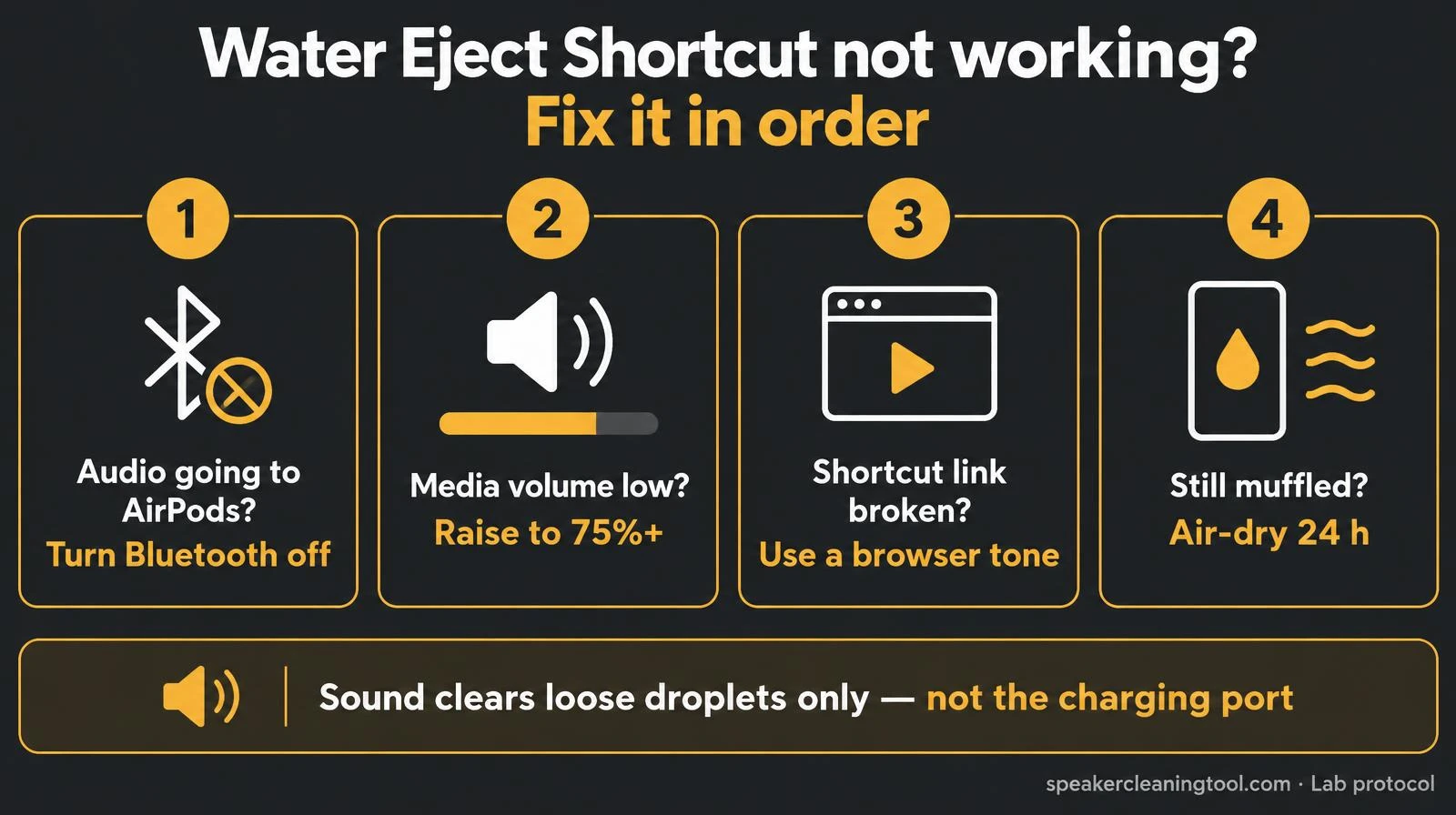
Symptom → cause → fix
| What happens | Likely cause | Fix |
|---|---|---|
| Shortcut "runs" but the speaker is silent | Audio sent to AirPods, car or a Bluetooth speaker | Turn Bluetooth off in Control Center, or choose iPhone in the AirPlay menu |
| Tone is very faint | Media volume is low (it's separate from the ringer on some setups) | Play any audio, then raise the volume buttons to 75%+ |
| Siri says it can't find the shortcut | The spoken phrase doesn't match the shortcut's name | Check the exact name in the Shortcuts app, or rename it to something short |
| Link won't open or the shortcut is gone | The author's iCloud share link was removed or changed | Use the browser water eject instead |
| It asks for permissions it shouldn't need | Not a plain sound shortcut | Don't add it. A sound-only shortcut needs no personal data |
| Tone plays loudly but sound stays muffled | Moisture deeper in the mesh, lint, or damage | Stop running tones; air-dry 24 h, then read the muffled speaker guide |
Shortcut vs browser tone vs just waiting
| Water Eject Shortcut | Browser tone (this page) | Air-drying only | |
|---|---|---|---|
| Setup | Find a share link, review, add | None, open the page | None |
| Works if the link dies | No | Yes | Yes |
| Hands-free with Siri | Yes, once installed | No | — |
| Clears loose speaker droplets | Can help | Can help | Yes, more slowly |
| Dries the charging port | No | No | Yes, given time |
Honest take: if the Shortcut already works for you, keep using it. The sound does the same basic job. This page is for when it doesn't, or when you'd rather not install anything on a wet phone in a hurry.
Before you add any shared Shortcut
- Open the link and read the action list shown before you tap Add. A water eject shortcut only needs actions like Set Volume and Play Sound.
- Skip anything that asks for contacts, photos, location or to send data to a website.
- Prefer links from a page you can see is maintained, and remove shortcuts you no longer use.
What a tone can't fix
Neither the Shortcut nor this page can push water out from inside the phone. If you see a liquid detected alert, that's the charging port, unplug and let it dry. Skip rice, hair dryers and compressed air. If sound is still muffled after a day of drying, run the speaker test or the diagnostic, and contact Apple or an authorised repair provider if it doesn't recover. For the full rescue steps, see how to get water out of an iPhone speaker.
Related tools & guides
- TooliPhone Water Eject →165 Hz pulse set up for iPhone speakers.
- GuideiPhone Water Guide →Step-by-step rescue for a wet iPhone speaker.
- GuideLiquid Detected in Port →Lightning/USB-C moisture alert: safe drying steps.
- ToolSpeaker Test →Left/right, rattle, bass and treble checks.
- ToolFix My Speaker Diagnostic →Two questions, the safest first fix.
Standards & references
- Shortcuts User Guide for iPhone
Apple Support
How shortcuts are added, reviewed and run (including with Siri). Confirms shortcuts are user-built automations, not system features.
- About splash, water, and dust resistance of iPhone 7 and later
Apple Support
Apple's guidance for a wet iPhone: dry it with a lint-free cloth and avoid external heat, compressed air or inserting objects.
- How to use Water Lock and eject water from your Apple Watch
Apple Support
The Apple Watch feature that inspired the Shortcut. iPhone has no equivalent setting.
Frequently asked questions
+Is the Water Eject Shortcut made by Apple?
No. It is a community-made Shortcut shared through links on sites such as RoutineHub. Apple's Shortcuts app runs it, but Apple does not make or support it. iPhone has no built-in water eject setting; Water Lock is an Apple Watch feature.
+Why does the Water Eject Shortcut run but I hear nothing?
Most often the sound is going to connected AirPods, a car or a Bluetooth speaker, or media volume is turned down. Turn Bluetooth off, raise the volume while something is playing, and run it again.
+How do I run the Water Eject Shortcut with Siri?
Siri runs a shortcut when you say its exact name, for example "Hey Siri, Water Eject" if that is what the shortcut is called in your library. If Siri says it can't find it, check the name in the Shortcuts app.
+The Shortcut link doesn't open anymore. What can I do?
Shared Shortcuts depend on the author's iCloud link, which can be removed or changed. You don't need it: the player on this page plays a 165 Hz pulse in Safari, which does the same basic job with nothing to install.
+Is it safe to run a downloaded Shortcut?
Before adding any shared Shortcut, the Shortcuts app shows its actions. A water eject shortcut should only need to play a sound and set volume. If it asks for contacts, location, photos or web access, don't add it.
+Does the Shortcut or this page dry the charging port?
No. Sound only moves droplets on the speaker mesh. If iPhone shows a liquid-detected alert, unplug the cable and let the port air-dry; see our charging-port guide.