Scenario guide · Samsung Galaxy
Samsung “Moisture Detected” Won’t Go Away? How to Fix It
Short answer
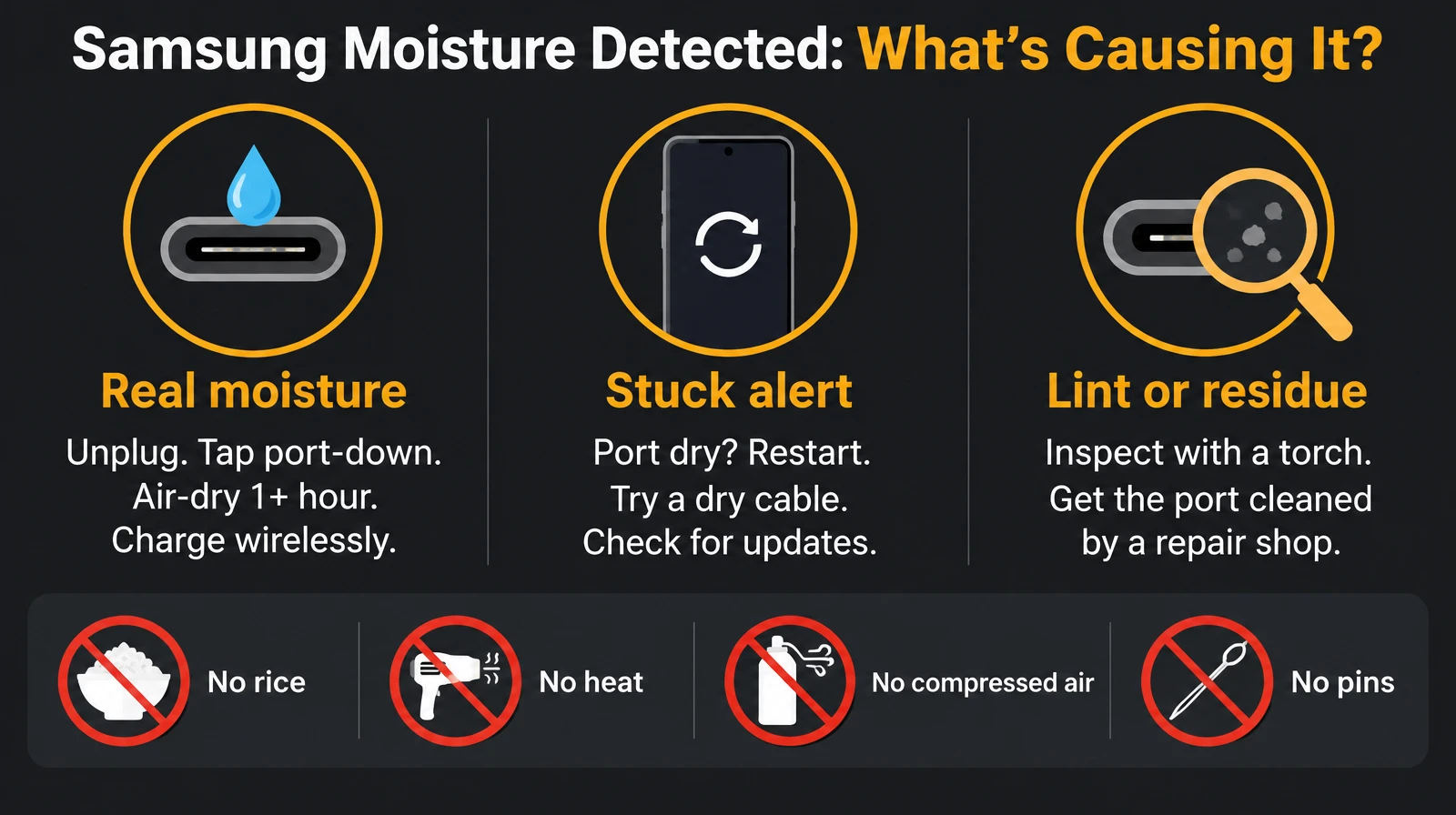
Unplug the cable, tap the phone gently port-down against your palm, then leave it somewhere dry with airflow until the alert clears on its own. Charge wirelessly in the meantime if your phone supports it. If the port is clearly dry and the alert stays, restart, try a different dry cable, and look for lint. Skip rice, heat, compressed air and anything poked into the port.
Want to try the fix right now?
Open Android Water Eject →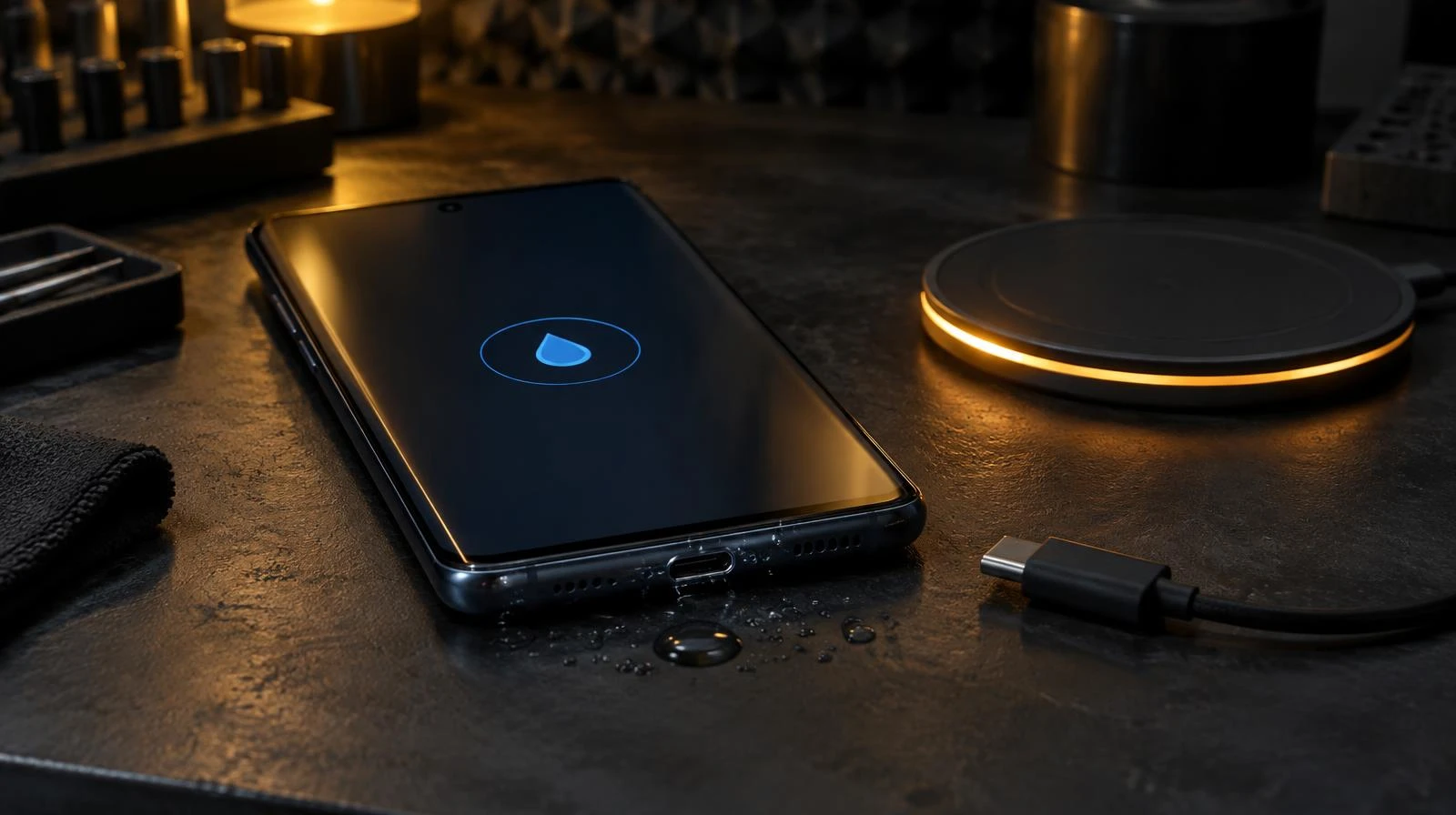
Do this now (4 steps)
- Unplug. Remove the cable and any USB-C accessory. Don't keep re-plugging to test.
- Tap it out. Hold the phone port-down and tap it gently against your palm a few times.
- Air-dry. Put it on a desk with some airflow (a fan on low is fine). Give it at least an hour after a soak before trying the cable again.
- Charge wirelessly if you need power. Wipe the back dry first. Wireless charging doesn't use the port.
Which problem do you have?
| What you see | Likely cause | What to do |
|---|---|---|
| Alert right after a pool, shower, rain or spill | Real moisture on the pins | The 4 steps above, then wait |
| Alert keeps returning though the phone stayed dry for a day | Stuck alert or a damp cable | Restart, swap to a dry cable and charger, install updates |
| Alert appears randomly, even in a dry room | Lint, dust or residue bridging pins | Inspect with a torch; get the port professionally cleaned |
| Alert after sea water, a drink or sweat | Salt or sugar residue left behind | Dry fully; if it persists, professional cleaning |
Who sees this alert, and when
The warning comes from moisture detection built into the USB-C port of recent Galaxy phones and tablets. In practice it shows up in a few predictable situations:
- After swimming or a beach day: water-resistant phones are often taken into pools and the sea, and the port holds water longest.
- In the bathroom: steam from a shower can condense in the port even if the phone never touched water.
- During workouts and runs: sweat is salty and conductive, so a phone in an armband or pocket can trigger it.
- In rain or humid weather: especially when a cold phone comes into a warm room.
- From pocket lint: no water at all, just packed debris that holds moisture.
Other Android brands have similar alerts with different wording. iPhone shows "Liquid detected" instead; see the iPhone and USB-C liquid detected guide.
When the port is dry but the alert stays
- Restart the phone. This rechecks the port.
- Try a different, dry cable and charger. A damp or damaged cable end can trigger the alert by itself.
- Update the phone in Settings → Software update.
- Optional: some users report that clearing the cache of the USB settings system app (Settings → Apps → show system apps → USBSettings → Storage → Clear cache, then restart) helps. Samsung doesn't list this as an official fix and the option isn't on every model.
- Inspect the port with a torch. If you see lint or a white/green crust, have it cleaned at a Samsung service centre or authorised repair shop.
Why a water eject tone won't fix this
Our Android water eject tool plays a low tone so the speaker mesh vibrates and shakes droplets off. The USB-C port sits right next to the speaker, but it has no speaker behind it. Sound doesn't move water out of it. If calls or music also sound muffled, run the tone for the speaker and let the port dry on its own. We'd rather tell you what actually works.
Mistakes that cause real damage
- Rice: it doesn't dry faster and dust can get into the port.
- Hair dryers or heaters: heat is hard on the battery and seals.
- Compressed air or blowing: can push water deeper; breath adds moisture.
- Pins, needles, cotton swabs: bend contacts or leave fibres behind.
- Forcing wired charging: charging over wet pins can corrode them.
After it's dry: check the rest of the phone
Water that reached the port often reached the speaker and microphone too. Run the speaker test at low volume and the microphone test. Not sure what you're hearing? The speaker diagnostic points you to the right fix. Our methodology explains what these browser tools can and can't do.
Related tools & guides
- ToolAndroid Water Eject →165 Hz pulse plus vibration for Android speakers.
- GuideLiquid Detected in Port →Lightning/USB-C moisture alert: safe drying steps.
- ToolSpeaker Test →Left/right, rattle, bass and treble checks.
- ToolMicrophone Test →Live level meter, voice bands and private playback.
- ToolFix My Speaker Diagnostic →Two questions, the safest first fix.
Standards & references
- What does the "Moisture detected" message mean?
Samsung Support
Samsung's explanation of the USB-C moisture alert and how to dry the port.
- If you see a liquid-detection alert on your iPhone
Apple Support
Apple's equivalent guidance (no rice, no heat or compressed air). The physics of a wet port is the same.
- IEC 60529: Degrees of protection provided by enclosures (IP Code)
International Electrotechnical Commission
IP67/IP68 are fresh-water lab tests; a rated phone can still get a wet port.
Frequently asked questions
+What does "Moisture detected" mean on a Samsung phone?
The phone has sensed moisture or something conductive on the USB-C port pins and has paused wired charging to protect the port and cable. It is a charging-port alert, not a speaker problem.
+How long does the Samsung moisture warning take to clear?
Once the port is fully dry the alert clears on its own. That can take from under an hour to several hours after a soak; let the phone sit somewhere dry with airflow and don't keep plugging the cable in to check.
+Can I still charge my Galaxy while it says moisture detected?
Use a wireless charger if your model supports it. It doesn't use the port. Dry the back of the phone first. Avoid forcing wired charging while the pins are wet.
+The port is dry but the warning won't go away. What now?
Restart the phone, try a different dry cable and charger, and check for software updates. Look inside the port with a torch for lint or residue. If it continues, have the port cleaned at a Samsung service centre or authorised repair shop.
+Should I clear the USBSettings cache?
Some users report that clearing the cache of the USB settings system app helps a stuck alert, but Samsung doesn't list it as an official fix and the option may not appear on every model or One UI version. Try a restart and a dry cable first; clearing a cache is low-risk but not guaranteed.
+Can a water eject sound dry the charging port?
No. A speaker tone vibrates the speaker's own mesh. The USB-C port has no speaker behind it, so sound won't move water out of it. If the speaker also sounds muffled, use the water eject tone for the speaker and let the port dry separately.